
Install help
Picture guides for every ROOK pack, on Mac and Windows. Most installs take about 5 minutes.
Install guide
Pick your pack and your computer. Every step has a picture.
Showing: Pro Editor on Mac
Quit Resolve all the way
Press Cmd + Q. Closing the window isn’t enough.
Unzip the download
Double-click the zip. Open the folder it makes and find 2 - Fusion Templates.
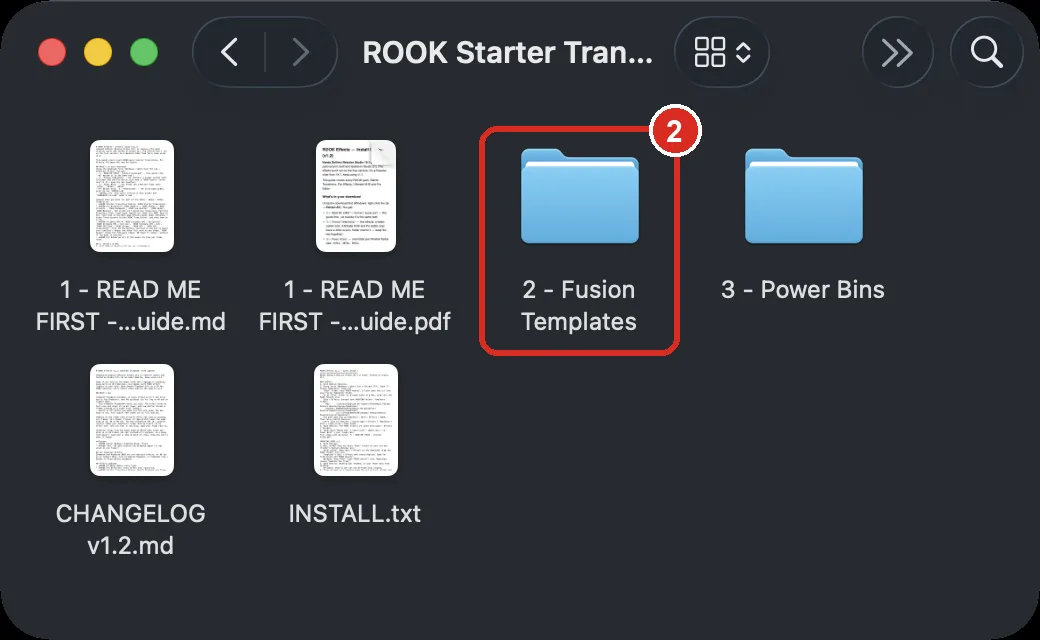
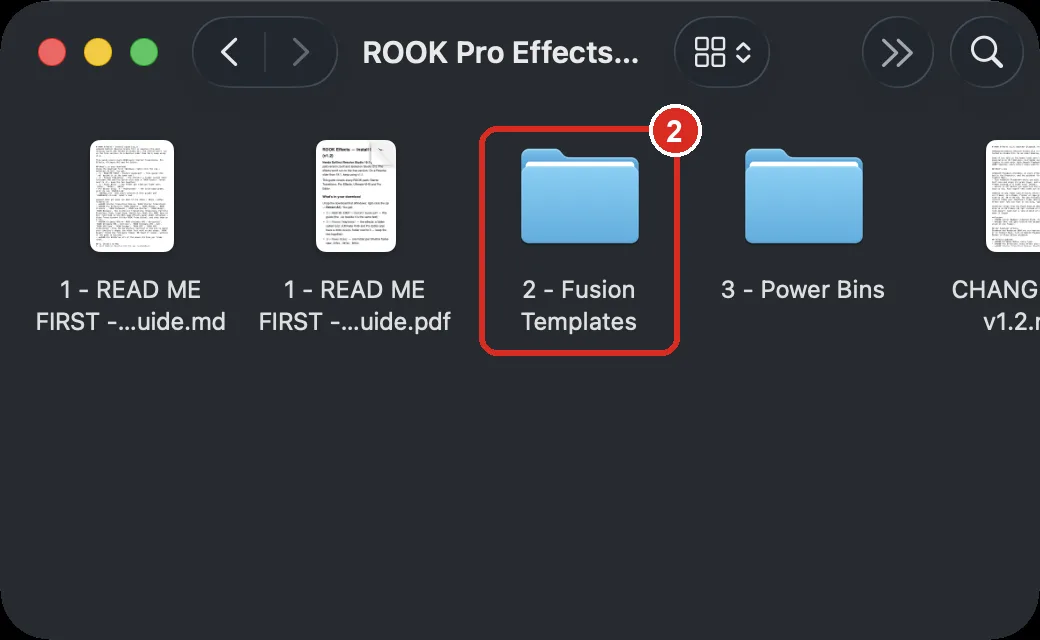
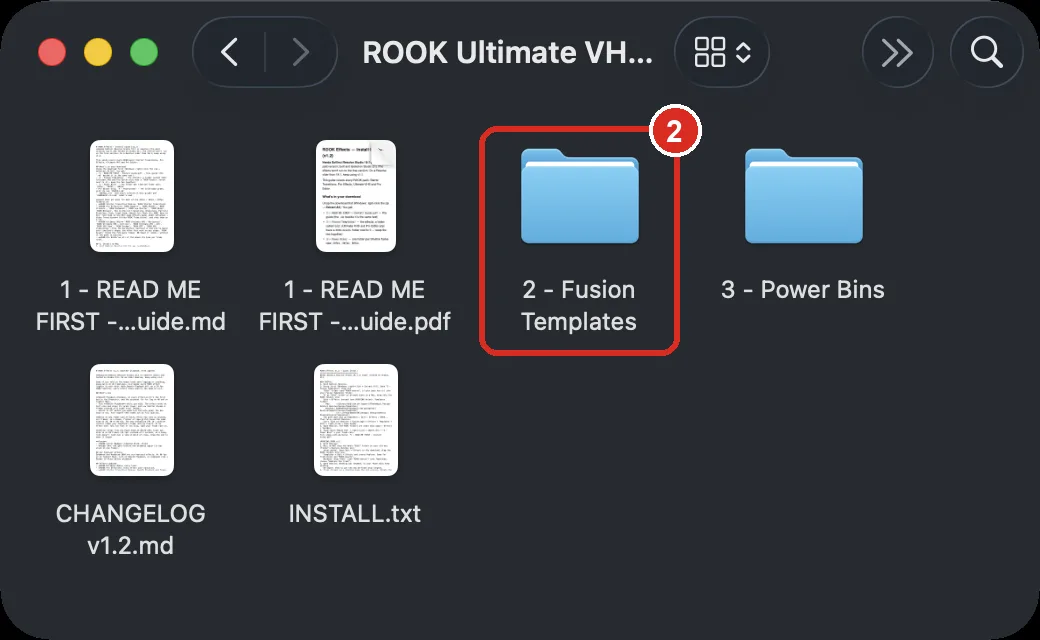
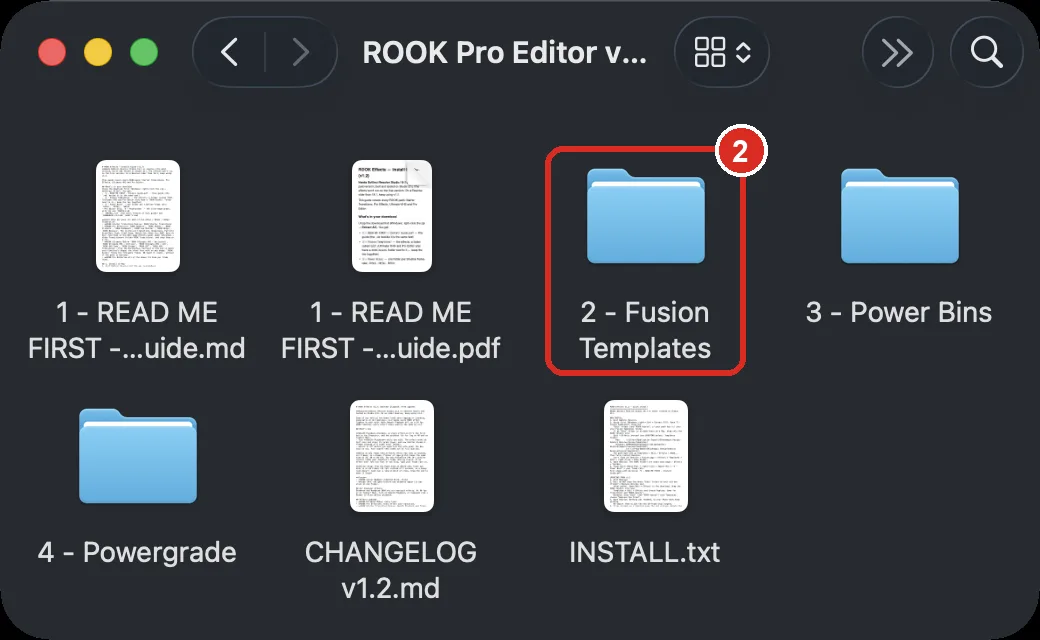
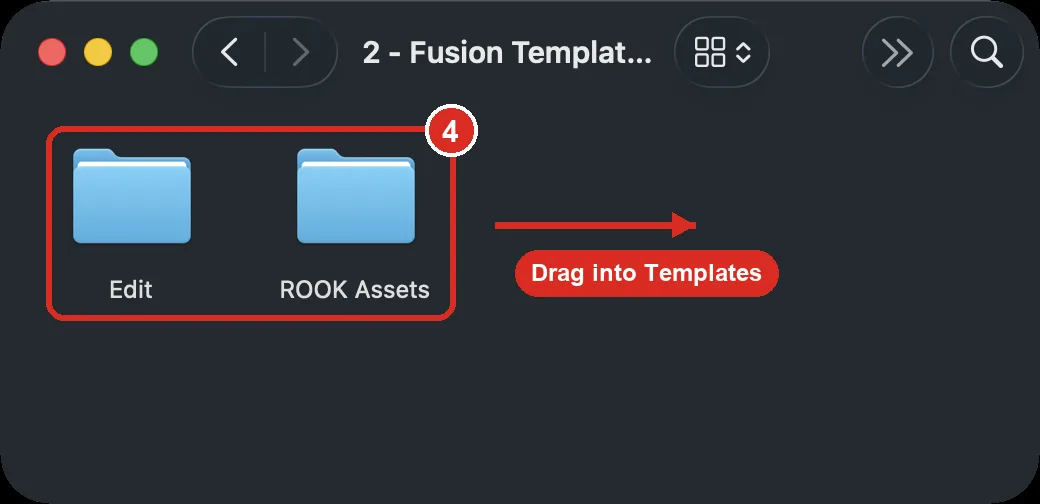
Your unzipped download. Pro Editor also has a 4 - Powergrade folder. Open the Templates folder
In Finder press Shift + Cmd + G, paste this, press Return:
~/Library/Application Support/Blackmagic Design/DaVinci Resolve/Fusion/Templates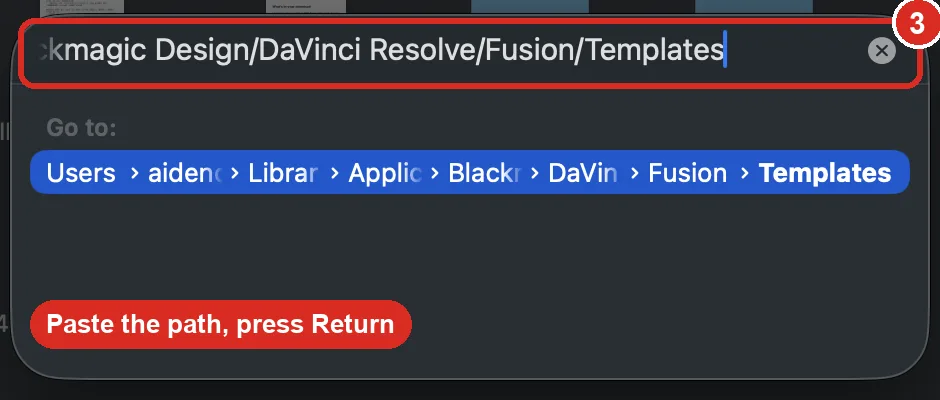
Finder → Go to Folder Drag Edit into Templates
Open 2 - Fusion Templates and drag the Edit folder and ROOK Assets into the Templates window.
Already have an Edit folder in Templates? Don’t drop Edit on top of it: Finder’s Replace deletes what’s inside, including other packs. Open Edit → Effects in the download, select all the ROOK folders and drag them into your own Templates → Edit → Effects. Same for Edit → Transitions if your pack has it. Then Replace is safe.
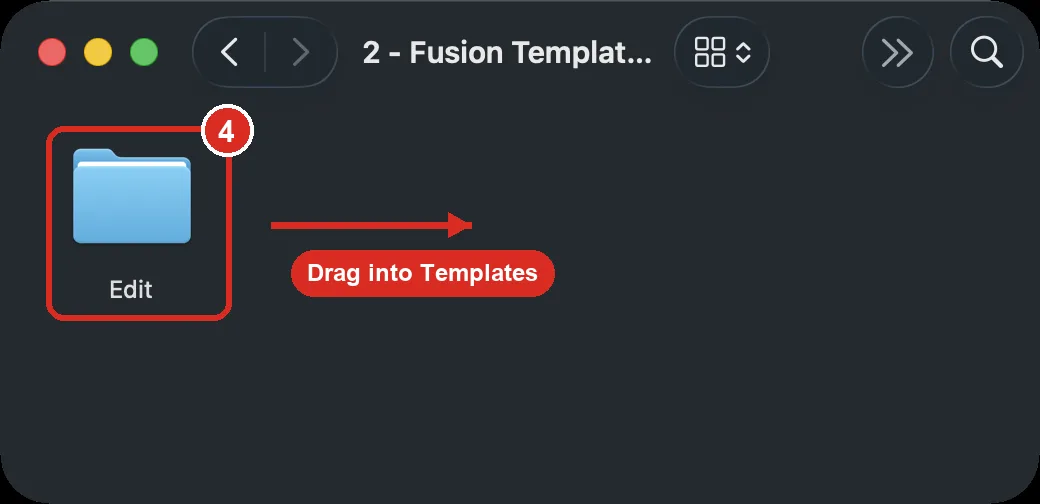
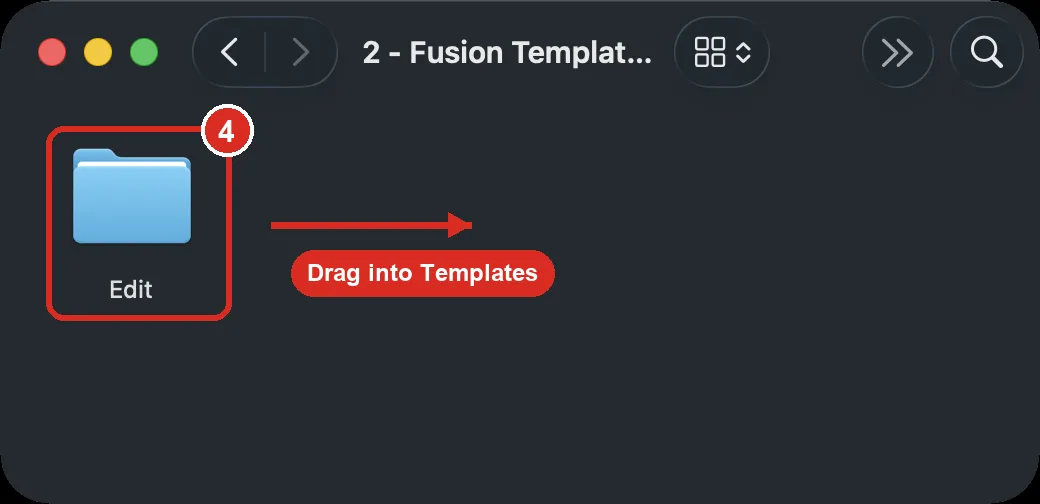
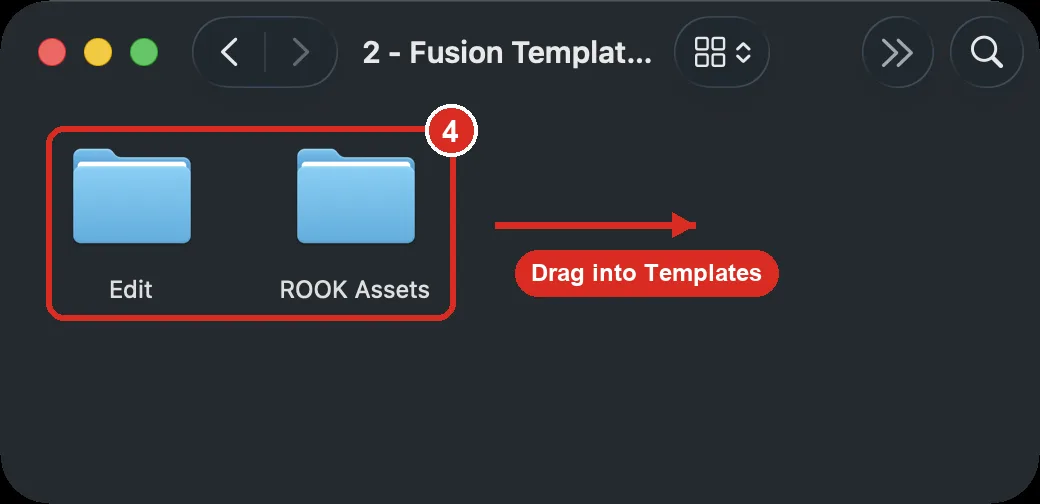
Inside 2 - Fusion Templates Check the path
It has to read Templates → Edit → Effects → ROOK… with the effect files inside.
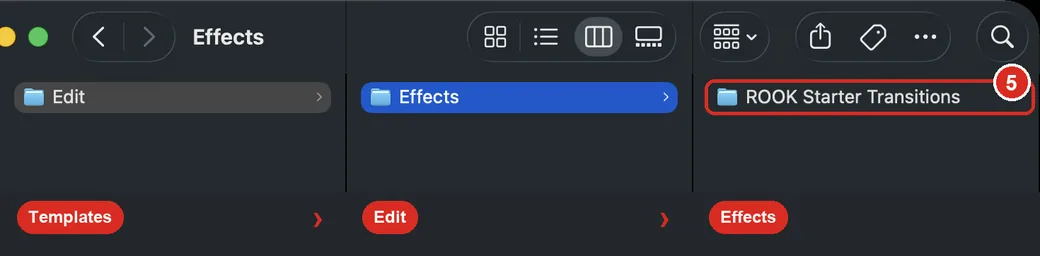
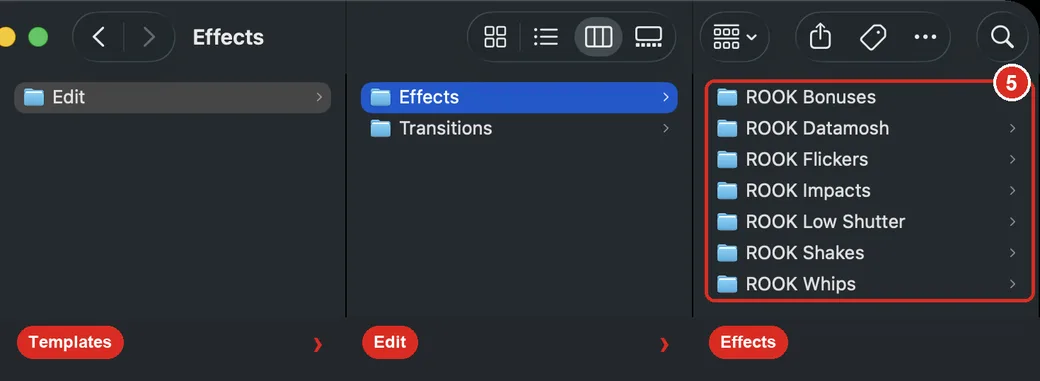
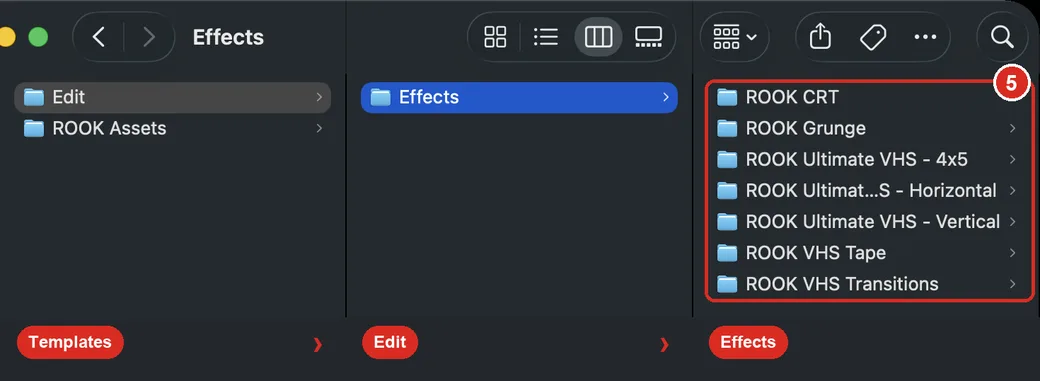
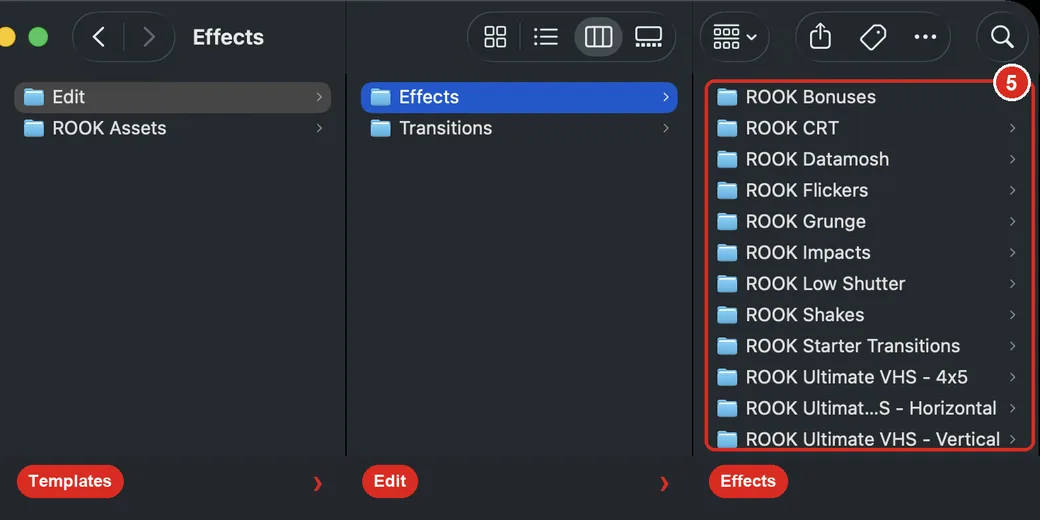
Right: Templates → Edit → Effects → ROOK… Close Resolve all the way
Close it, then check it’s gone from the taskbar.
Extract the zip
Right-click the zip → Extract All. Don’t drag anything straight out of the zip, Windows won’t copy it right.
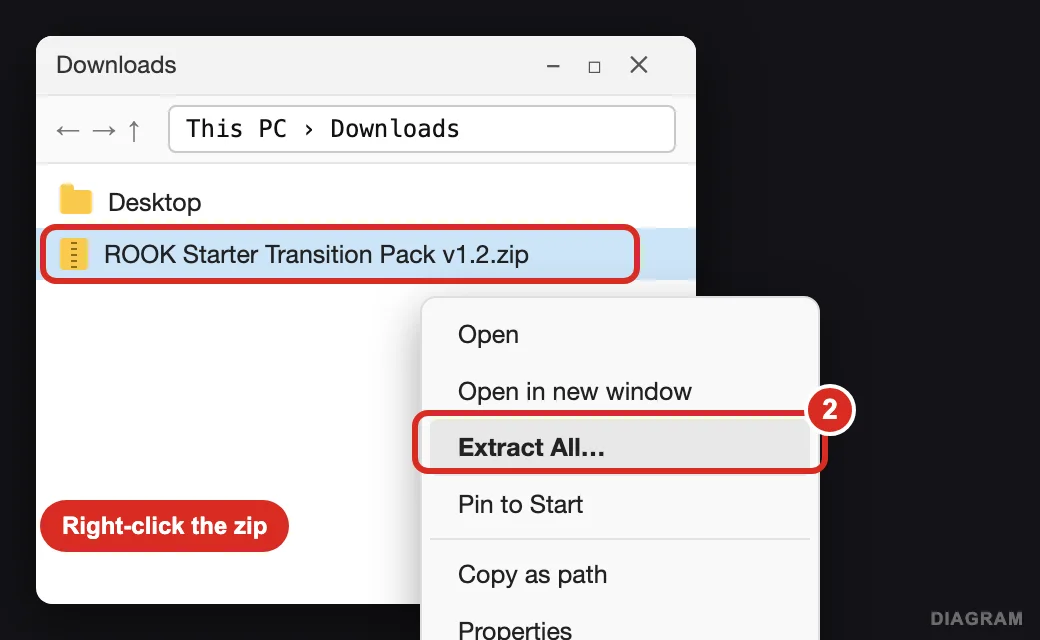
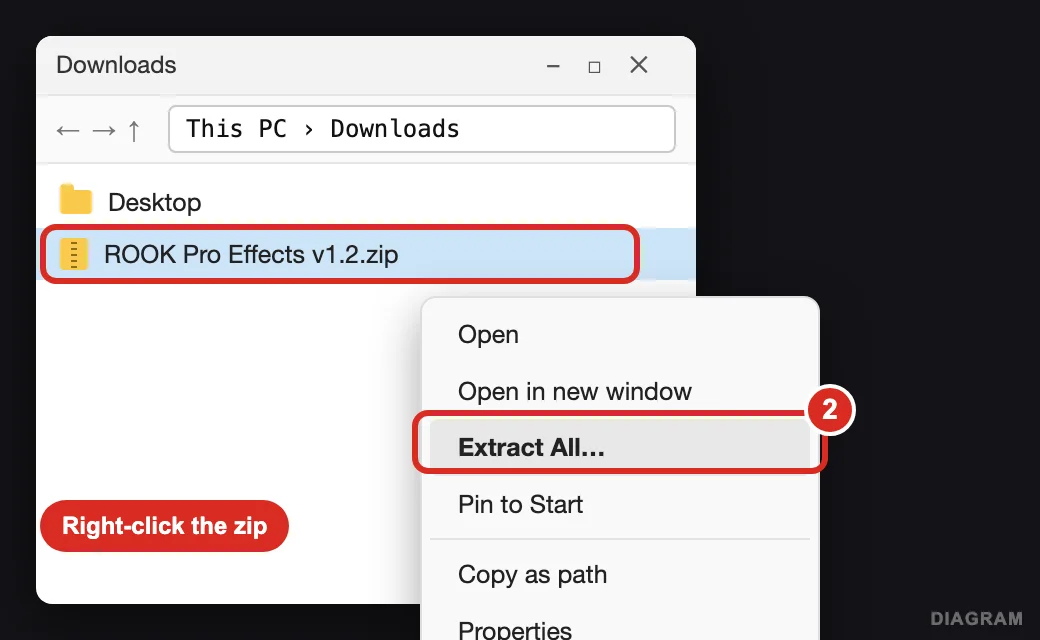
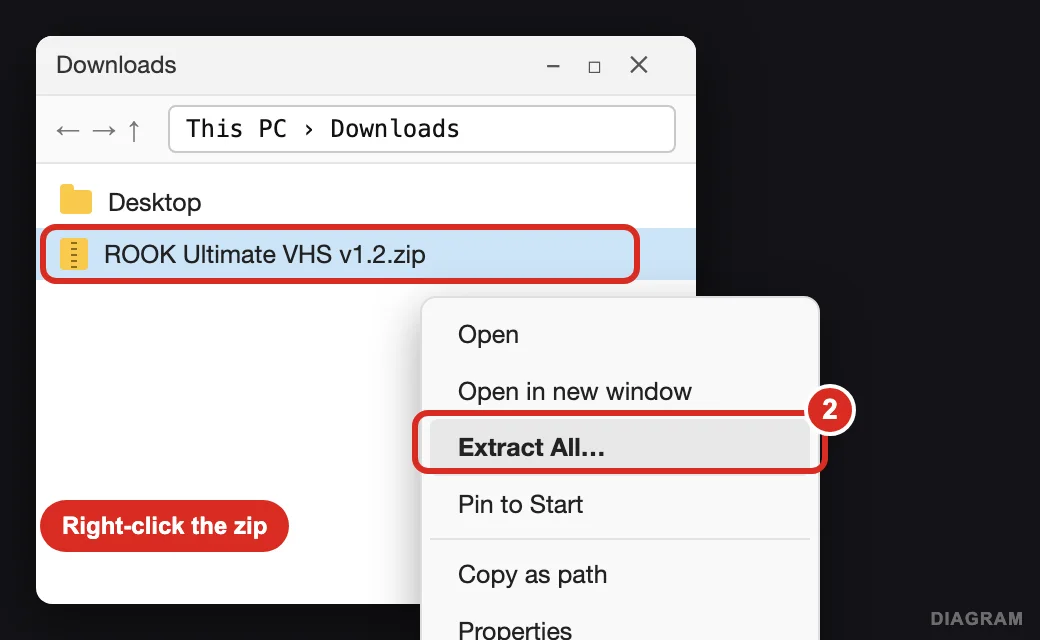
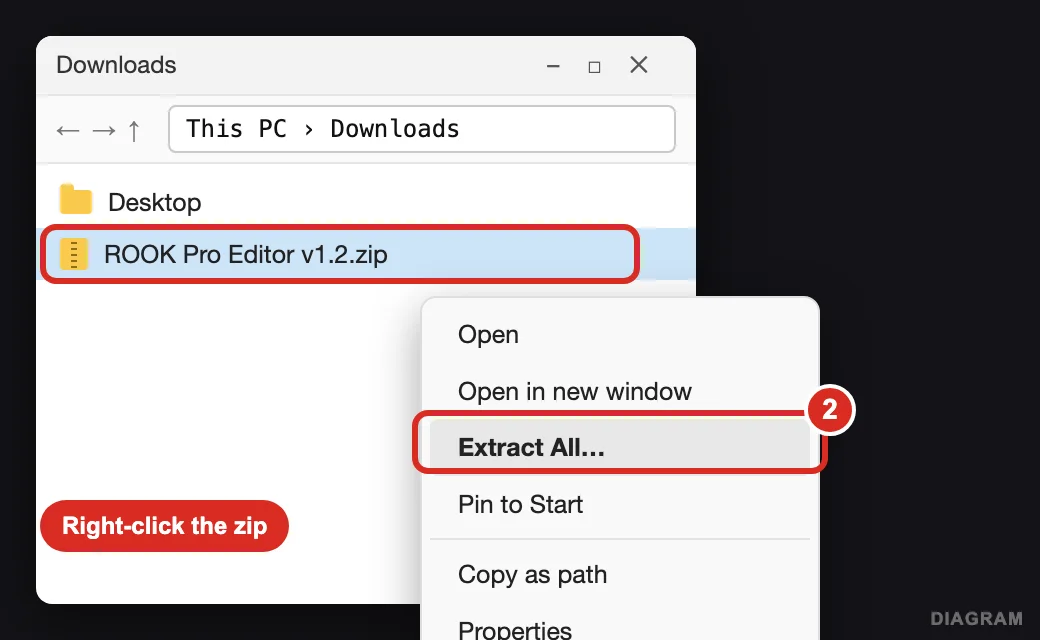
Right-click → Extract All Open the Templates folder
Open File Explorer, paste this into the address bar, press Enter:
%APPDATA%\Blackmagic Design\DaVinci Resolve\Support\Fusion\TemplatesWindows can’t find it? Use this one instead:
C:\ProgramData\Blackmagic Design\DaVinci Resolve\Fusion\Templates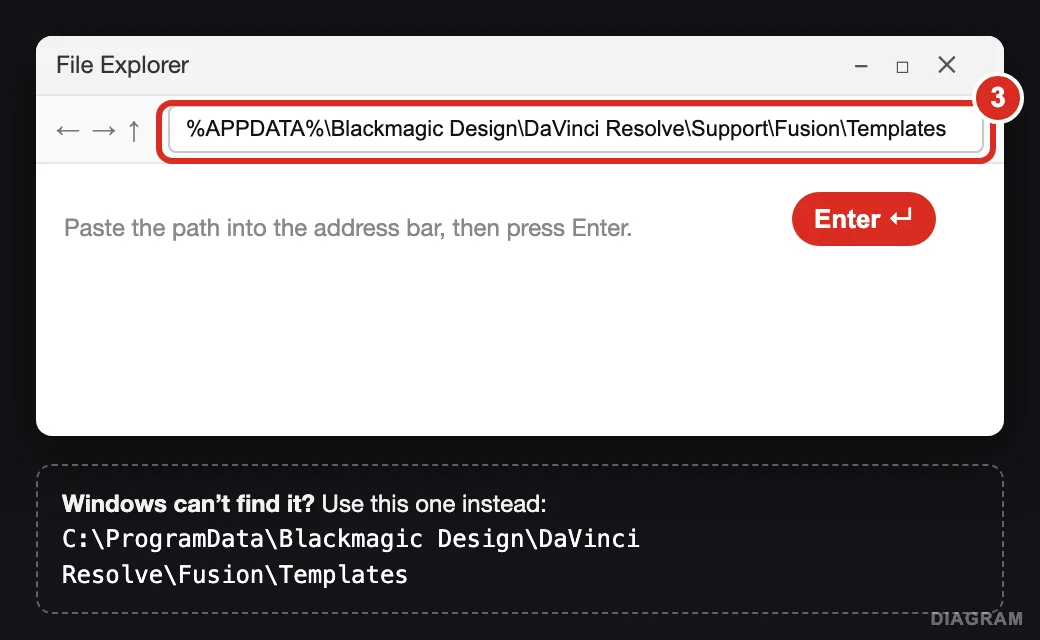
Paste into the address bar, press Enter Drag Edit into Templates
Open the extracted 2 - Fusion Templates folder and drag the Edit folder and ROOK Assets into that Templates folder. If Windows asks, choose Replace the files in the destination.
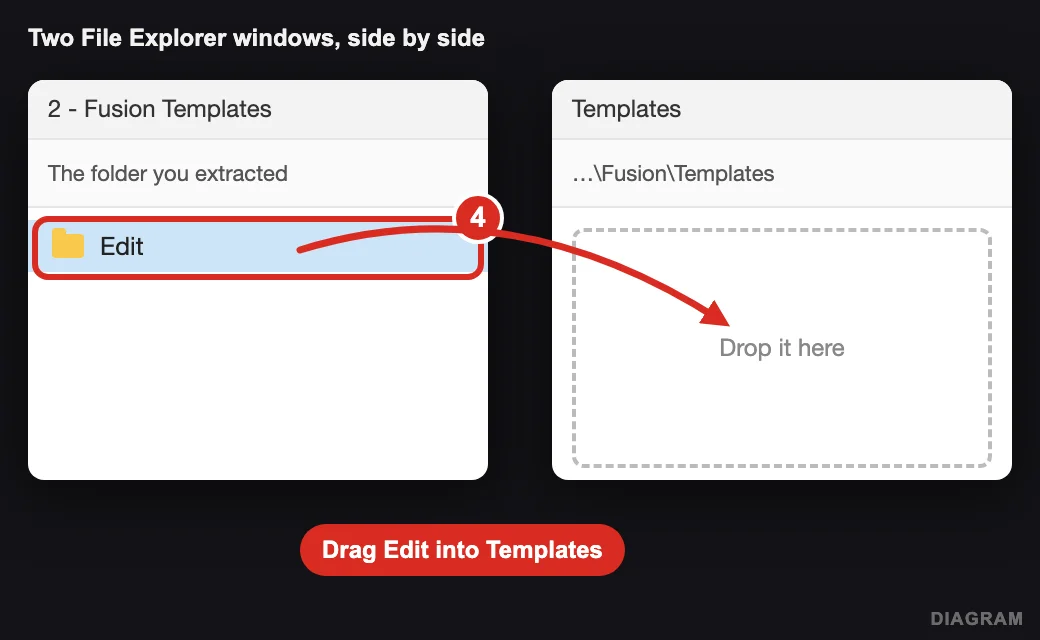
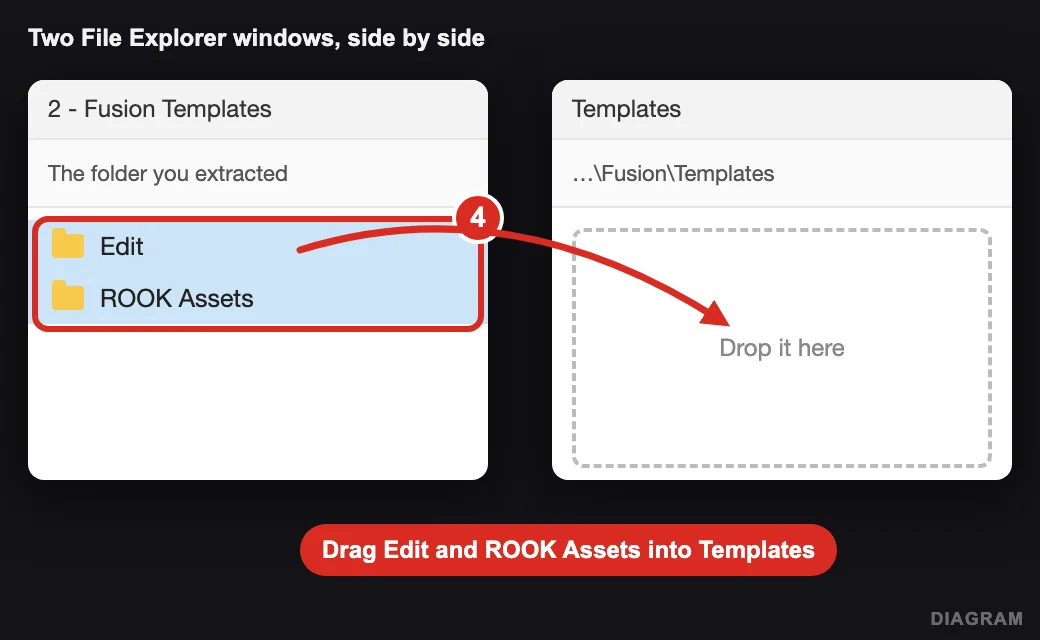
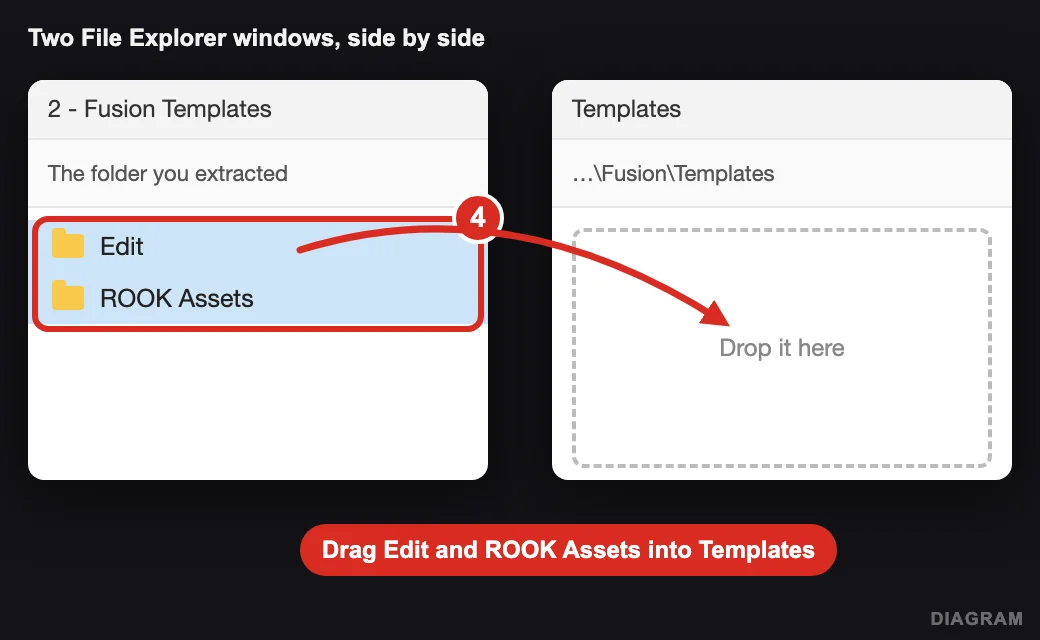
Two File Explorer windows side by side Check the path
It has to read Templates → Edit → Effects → ROOK… with the effect files inside. Not Templates → 2 - Fusion Templates → Edit. That’s one folder too deep.
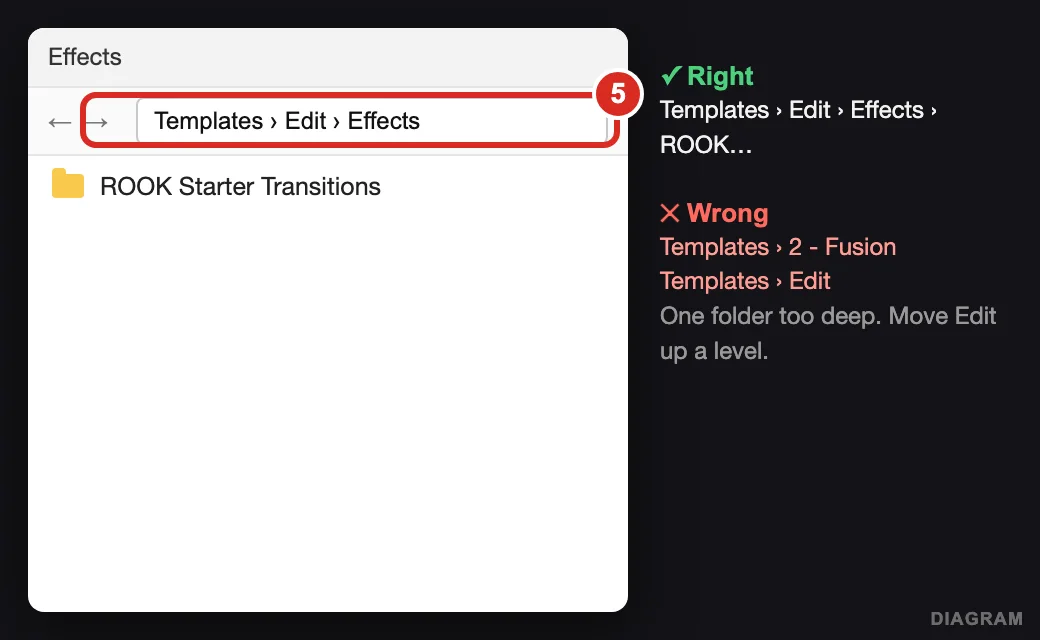
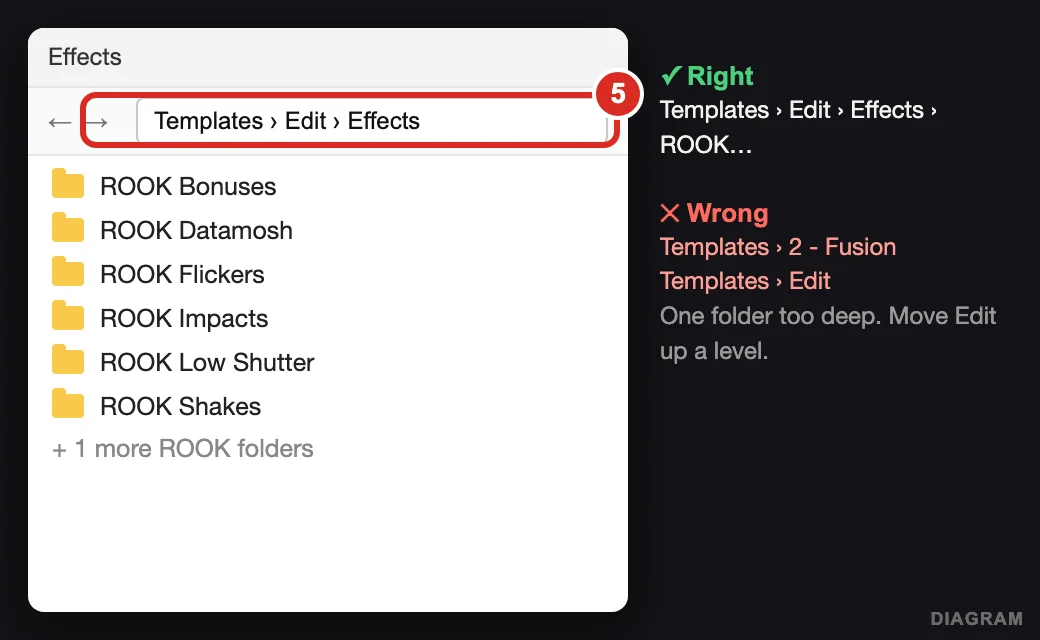
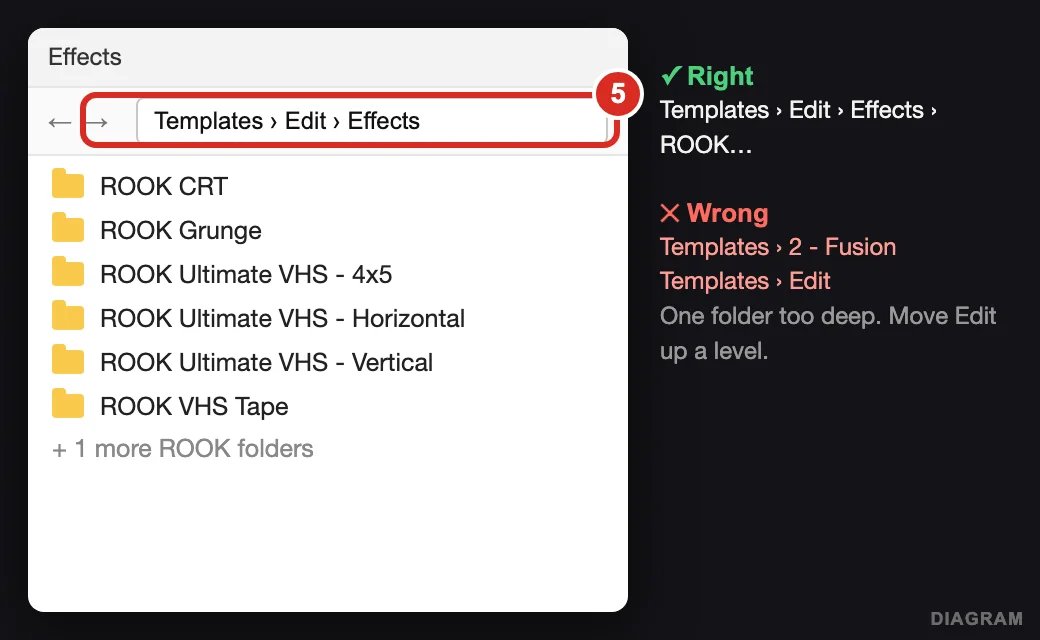
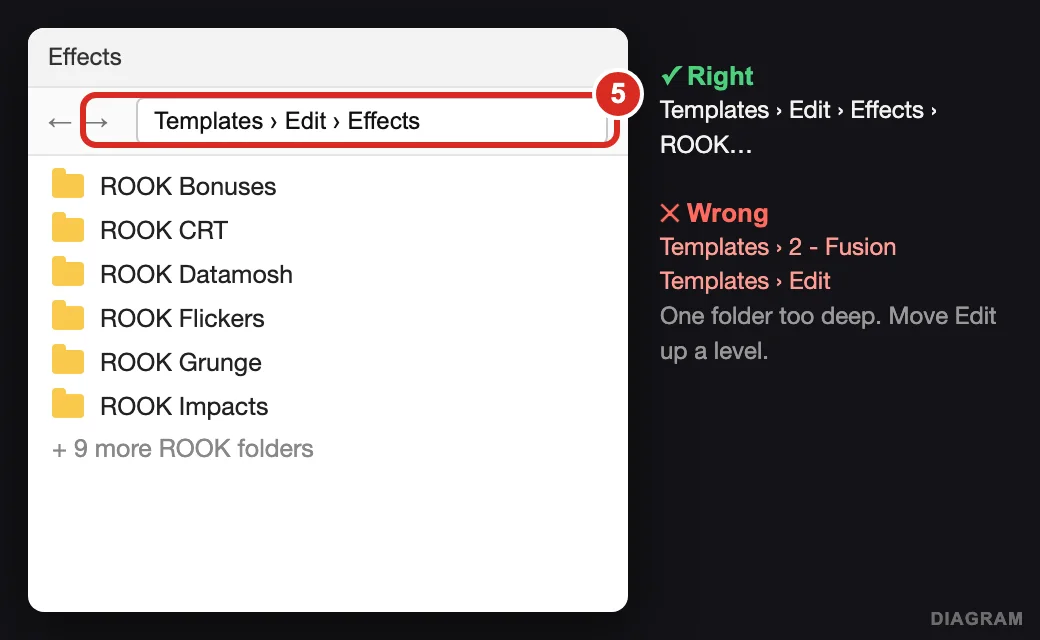
Right vs. one folder too deep Open Resolve and find ROOK
Open Resolve (fully restart it if it was open). Edit page → Effects (top left) → Toolbox → Effects. You should see the ROOK folders.
Nothing there? Resolve wasn’t fully restarted, or the folder is one level too deep. Go back to step 5.
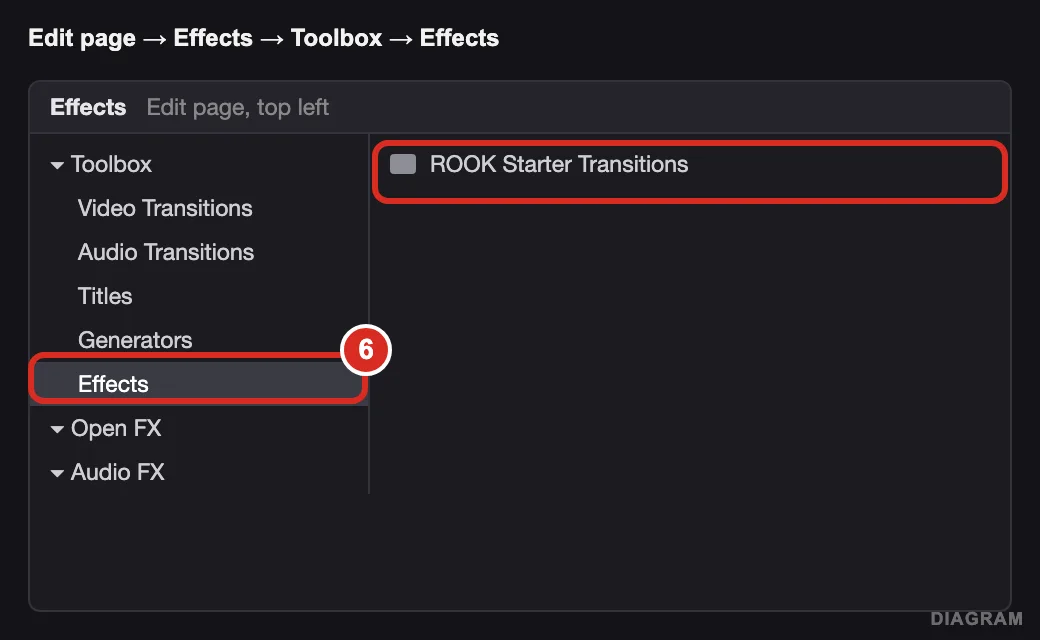
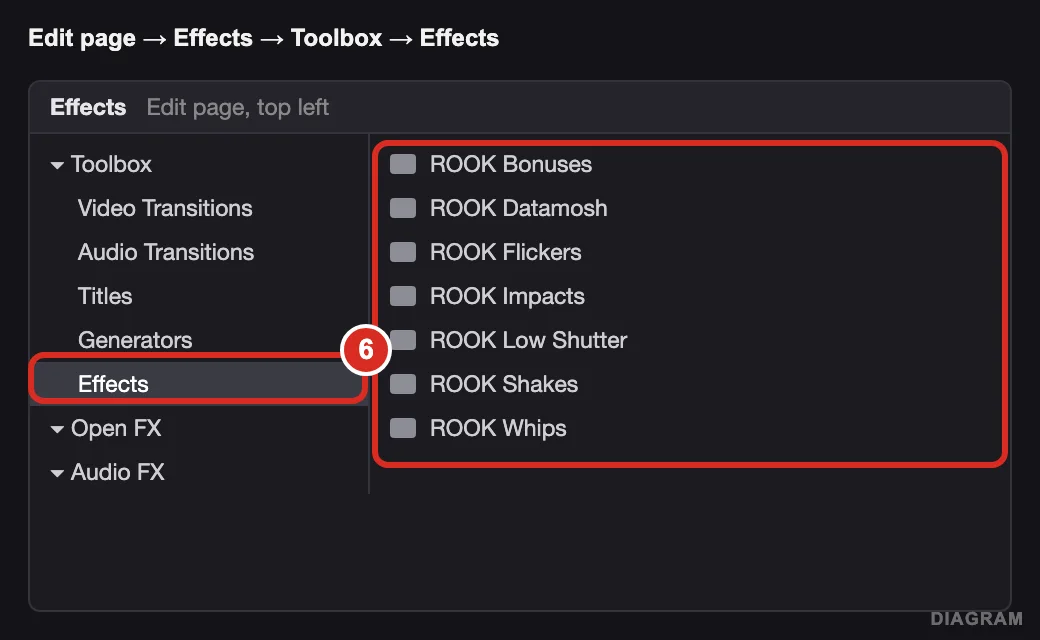
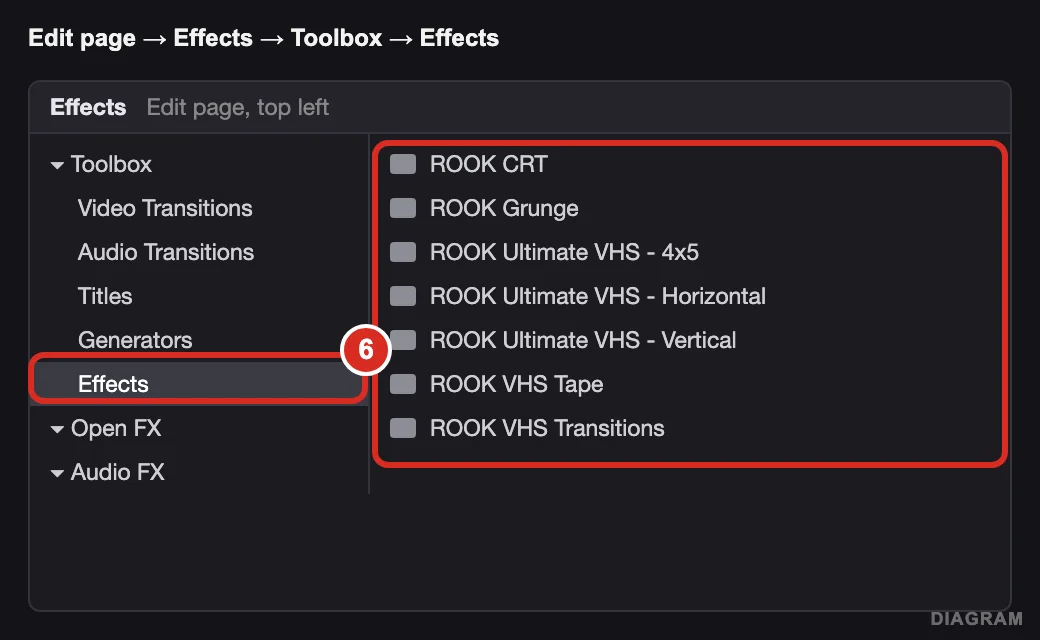
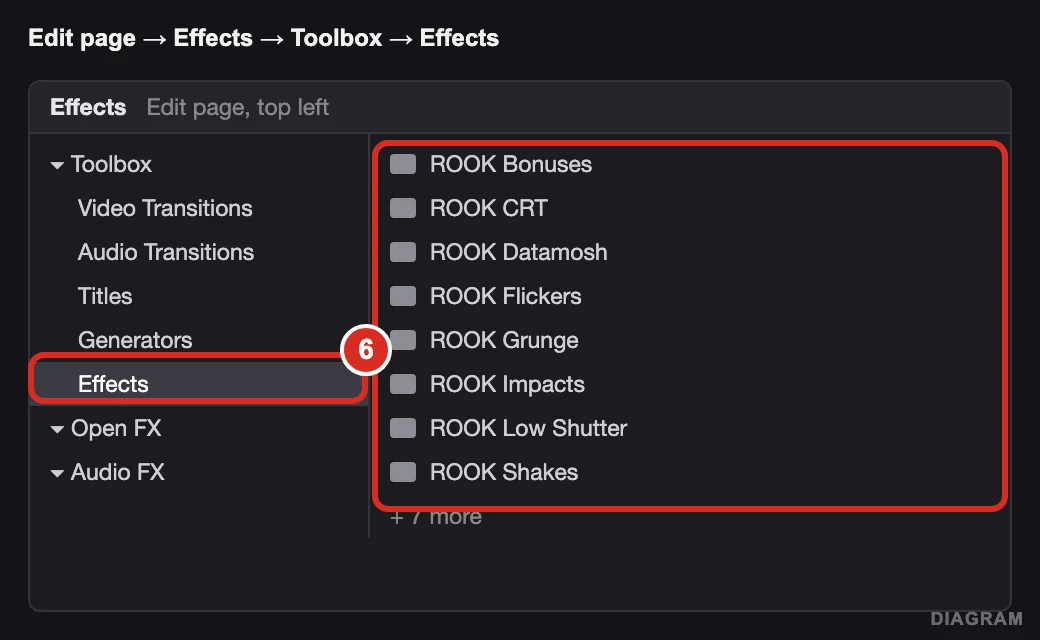
Edit page → Effects → Toolbox → Effects Import the Power Bin for your frame rate
Install first, then do this.
- a Media Pool → three dots (top right) → turn on Power Bins.
- b Right-click in the Media Pool → Import Bin.
- c Open 3 - Power Bins, pick the folder that matches your timeline (24fps, 30fps or 60fps) and pick the .drb.
- d Drag it into Power Bins so it follows you into every project.
Your bin is ROOK Starter Transitions.
You get 7 bins: Impacts, Shakes, Flickers, Datamosh, Low Shutter, Whips and Bonuses. The on-the-cut transitions (Dissolves, Push, Crash Zoom and the rest) have no bin: find them in the Effects panel under Toolbox → Video Transitions → ROOK Transitions and drop them on a cut.
Pick the Horizontal, Vertical or 4x5 bin to match your timeline’s shape. VHS Tape, Grunge, CRT and VHS Transitions work on any shape.
You get 15 bins per frame rate (every pack). For Ultimate VHS, pick the Horizontal, Vertical or 4x5 bin to match your timeline. The Powergrade is in 4 - Powergrade with its own short install note.
Imported a bin before the install worked? Delete that old bin and import it again. An old bin stays black even after you fix the install.
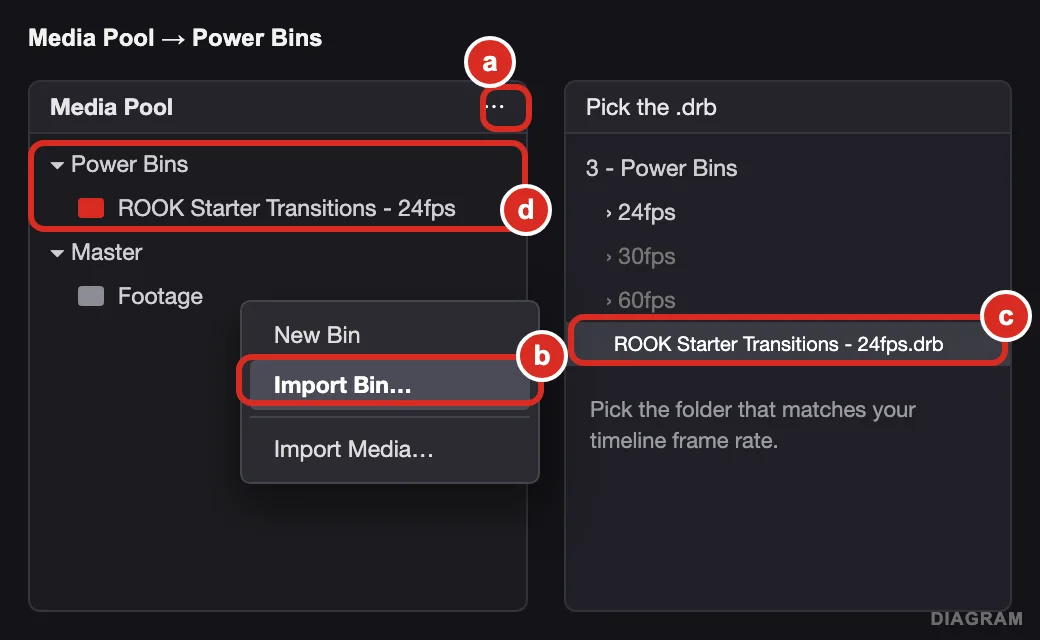
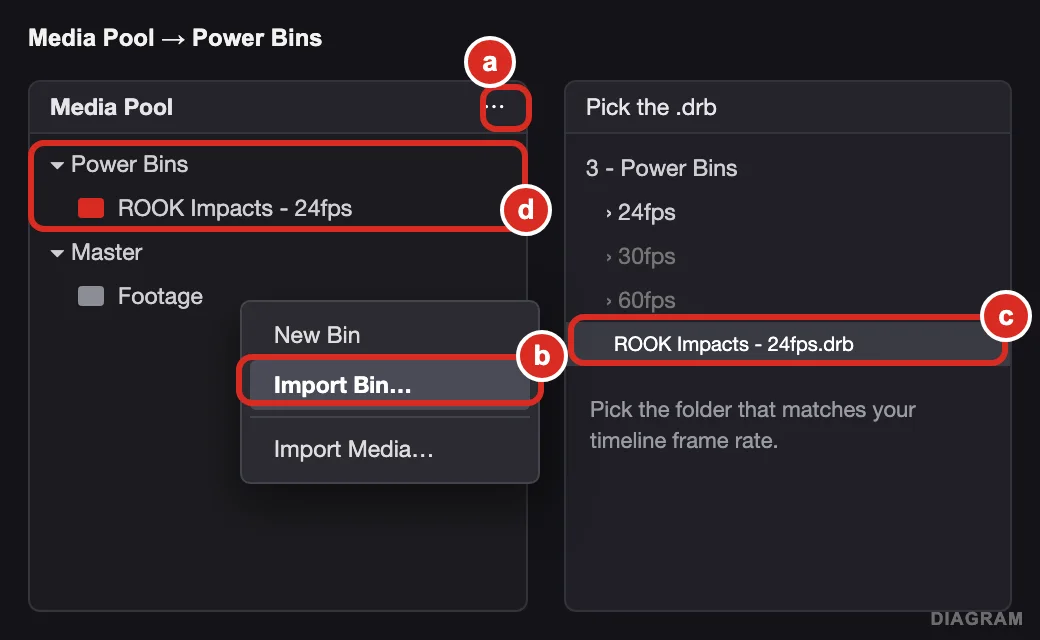
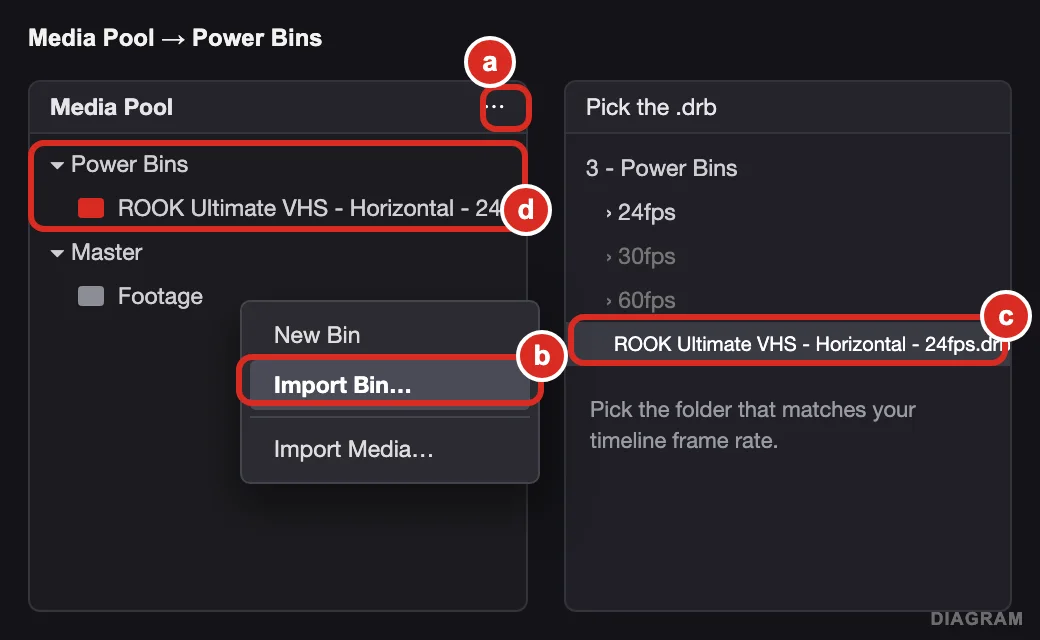
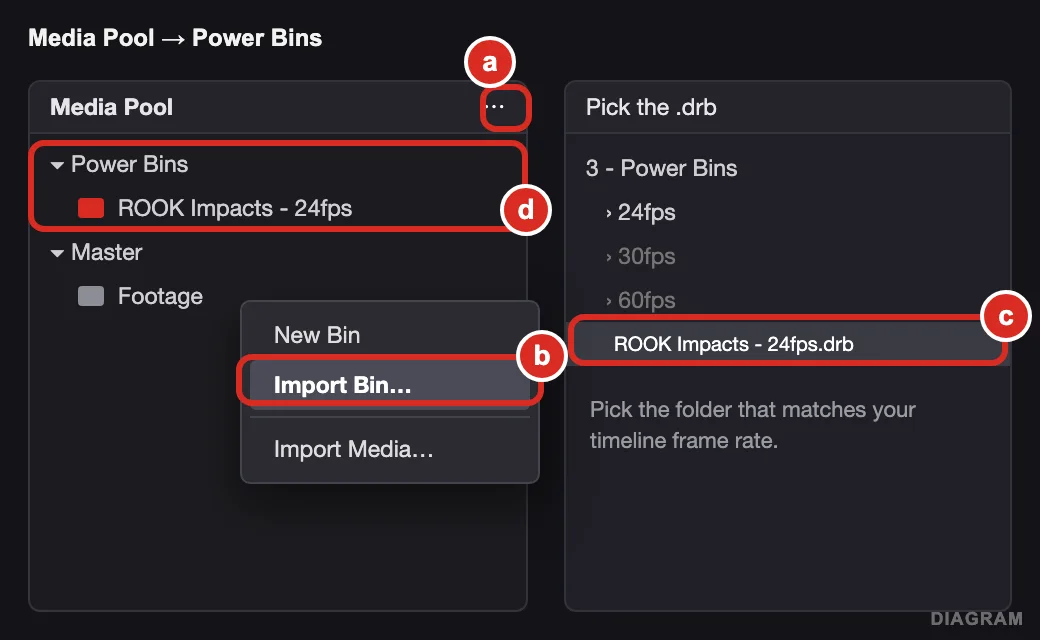
Media Pool → Power Bins
That’s it.
Put an adjustment clip on the track above your footage (or drag a clip from your Power Bin), and every control is in the Inspector. Updating later? Do the install again, choose Replace for the ROOK folders, then delete your old bin and import the new one.
Clips are black?
A black clip means Resolve can’t find the effect. It’s not the render cache, so you can ignore that setting. Check these three:
- Folder depth. It has to be Templates → Edit → Effects → ROOK…, not Templates → 2 - Fusion Templates → Edit. On Windows, use Extract All first.
- Old Power Bin. A bin you imported before the install worked stays black. Delete it and import the .drb for your frame rate again.
- Restart. Resolve only loads effects when it starts. Quit it all the way and open it again.
System requirements
- DaVinci Resolve Studio 19.1 or newer. The paid version. The effects don’t run on free Resolve.
- Mac: Apple Silicon (M1 or newer). 16 GB memory minimum, 32 GB for 4K.
- Windows: Windows 10 or 11 with a dedicated graphics card.
- Heavy effects (Datamosh, Handycam 2004): turn on Smooth Playback, or compound clip + Render in Place before you play it back.
FAQ
It’s laggy or keeps crashing. What do I do?
Right now what I’d do is compound clip the effect and the clip, then Render in Place. That stops the lag and the crashes. Select the effect and the clip under it, right-click → New Compound Clip, then right-click the compound clip → Render in Place. It plays like normal footage.
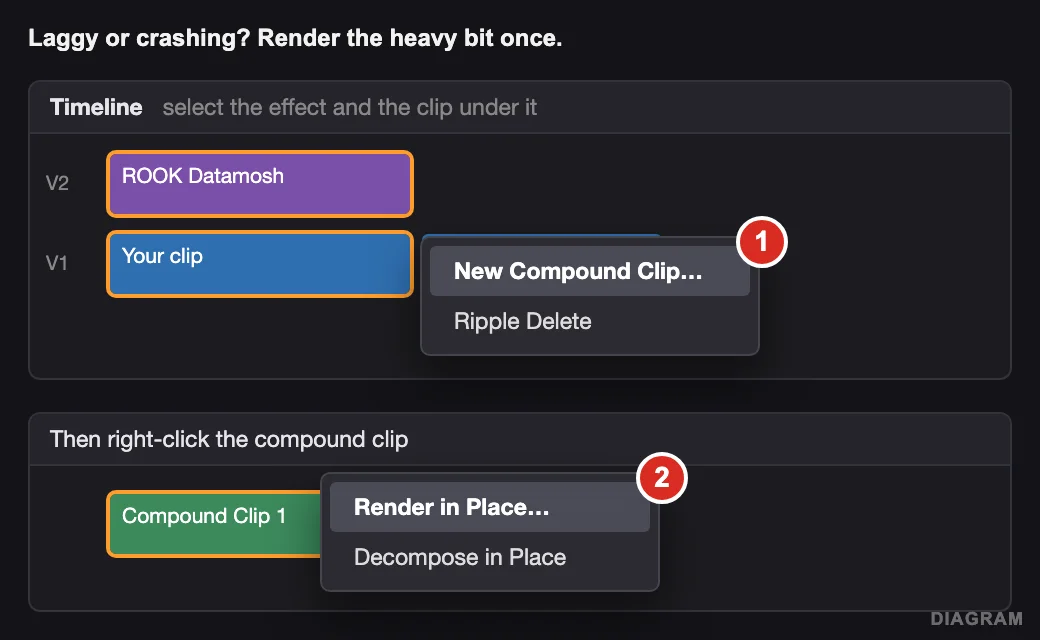
Still heavy? Playback → Timeline Proxy Resolution → Half, and Playback → Render Cache → Smart. Park on the effect for a few seconds and once the red line turns blue it plays in real time. None of this changes your export.
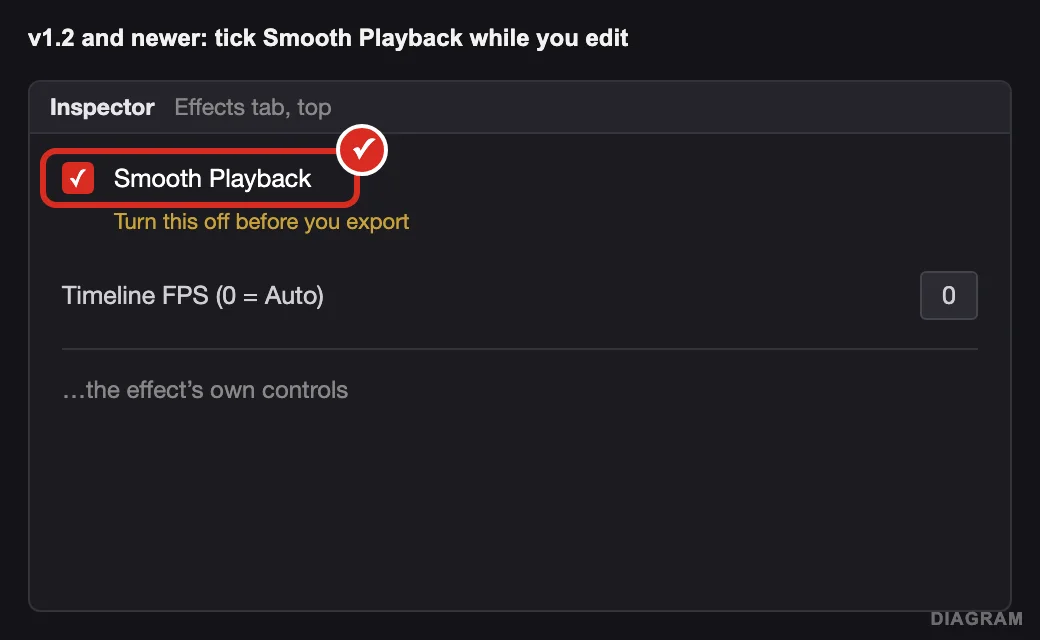
On v1.2 or newer, every effect also has Smooth Playback at the top of the Inspector. Tick it while you edit, untick it before you export.
My clips are black.
That means Resolve can’t find the effects, it’s not the render cache. Redo the install steps, make sure the path reads Templates → Edit → Effects → ROOK…, fully restart Resolve, then delete your old Power Bin and import it again.
Does it work on the free version of Resolve?
No. You need DaVinci Resolve Studio 19.1 or newer, the paid version. Free Resolve is really limited on effects, so they won’t run on it.
Is there a Premiere Pro version?
It’s coming, VHS first. No date yet. If you need transitions in Premiere right now, the PR Transition Pack is built for it.
Do you do discounts?
Join the email list. Drop your email in the popup on any pack page and we send you a code for 10% off your first order.
I already own a pack. Can I upgrade to Pro Editor?
PLACEHOLDER (Aiden is deciding): bundle upgrade price for people who already own a pack. For now, DM us on Instagram or email aiden@rookdm.com with the email you bought with.
How do I update to a new version?
Download the new version from your Payhip link, do the install again and choose Replace for the ROOK folders, restart Resolve, then delete the old bin and import the new one.
No refunds. These are digital files, so once they are downloaded the sale is final.
Still stuck?
Send us what’s happening and a screenshot. It goes straight to Aiden and we reply by email.
Rather message us? DM us on Instagram or email aiden@rookdm.com.